
WalletConnect / Oath for iPhone
Connect to a dApp. Review every request.
Connect Oath to a compatible dApp using its WalletConnect QR code or app link. Choose the wallet and networks you intend to share, then review each later request in Oath.
Explore supported scope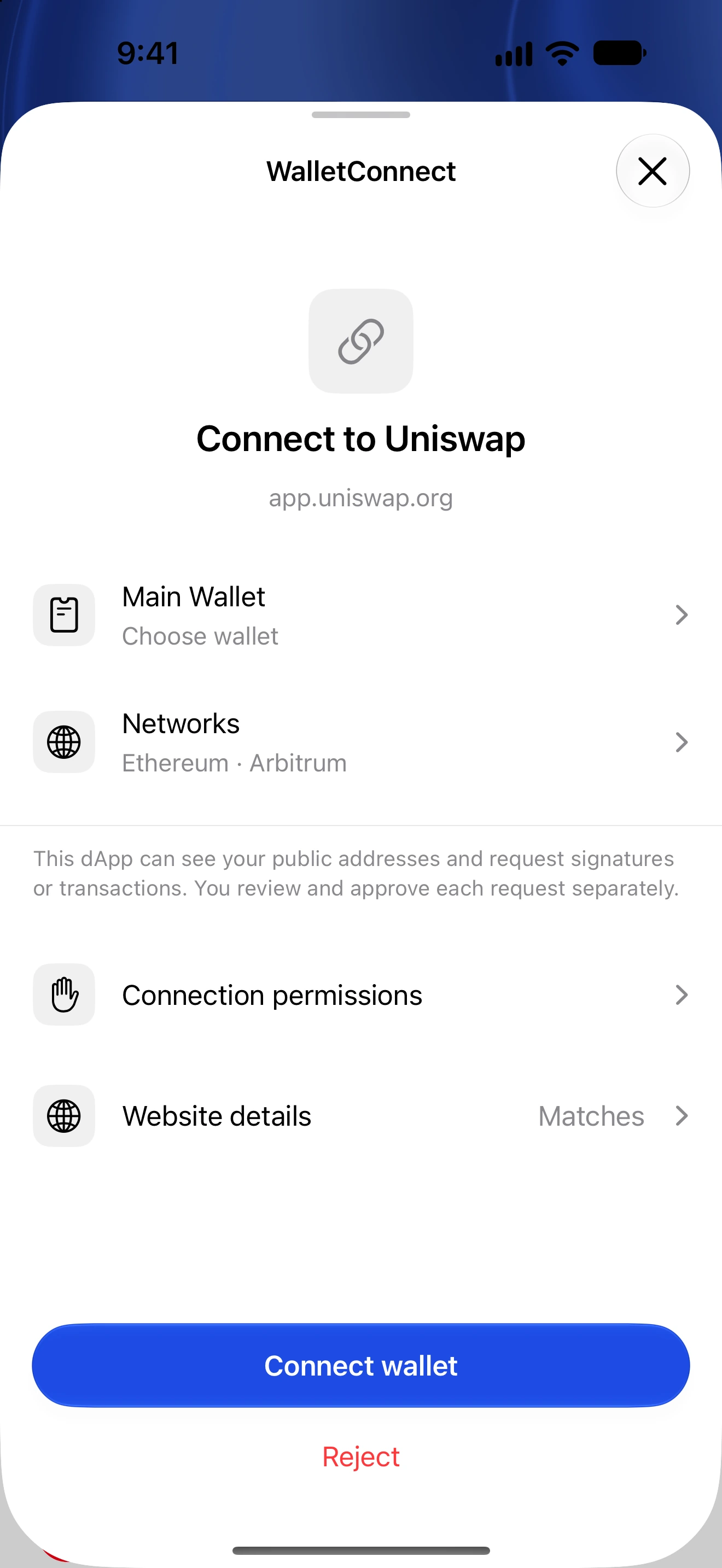
Check the website
Compare the full website address and read verification warnings. A familiar name or icon can be copied.
Choose the connection
Review the proposed accounts, networks and methods before approving the session.
Approve requests separately
A connection lets the dApp request supported actions. It does not approve every future signature or transfer.
Supported scope
Compatibility is specific to the request.
A network in your portfolio does not guarantee every dApp or signing method works. The released app checks the requested network and method before proceeding.
Compatible EVM requests
Supported mainnet EVM connections allow the signing and transaction requests implemented in Oath. Arc connections are not supported in this release.
Other supported networks
Oath supports compatible requests for Bitcoin, Solana, THORChain, XRP Ledger, Stellar, NEAR, Sui, Polkadot, TRON and Gram/TON. Available actions differ by network and dApp.
dApp and protocol limits
The dApp must offer a compatible mobile WalletConnect connection. WalletConnect is separate from TON Connect and browser-extension-only connections. Unsupported required methods or networks can prevent a session.
Start from the dApp
Open the intended website and choose WalletConnect. On another screen, scan the QR with Oath; on the same device, use the Oath link offered by the dApp.
Review the proposal
Unlock Oath if asked. Check the website, wallet, networks and requested permissions before connecting. Reject a proposal you cannot explain.
Review each request
Return to the dApp, then inspect each signature or transaction in Oath. Check the network, destination, amount and fee where applicable.
The next step
Manage the session when you are finished.
Find connections in Settings → WalletConnect or Permissions → Connected DApps. Disconnect an unwanted session, then check token approvals separately if you also want to remove on-chain access.
Read the disconnect guide →A few useful answers
Before you begin.
Does connecting share my recovery phrase?
No. A connection shares the approved public accounts and permits supported requests. Never enter recovery words or private keys into a dApp, and never publish a WalletConnect pairing QR or URI.
Why can a connection be rejected?
The proposal may be expired, or require a network, method or account the installed app cannot support. Read the message in Oath and start a fresh connection from the intended dApp if needed.
Is connecting the same as approving a token allowance?
No. Session approval and on-chain token access are separate. Review each request, and use the token-access tools to inspect supported allowances.
Can every Oath network use every dApp?
No. Compatibility depends on the network, wallet account and action requested by the dApp. Follow the relevant network guide and the options shown in your installed app.