
Encrypted iCloud backup / Oath for iPhone
Your wallet backup. Encrypted before upload.
Create password-encrypted backups of eligible wallets in your iCloud Drive. Keep the backup password and an independent recovery copy so you have a way back to your wallet.
Explore supported scope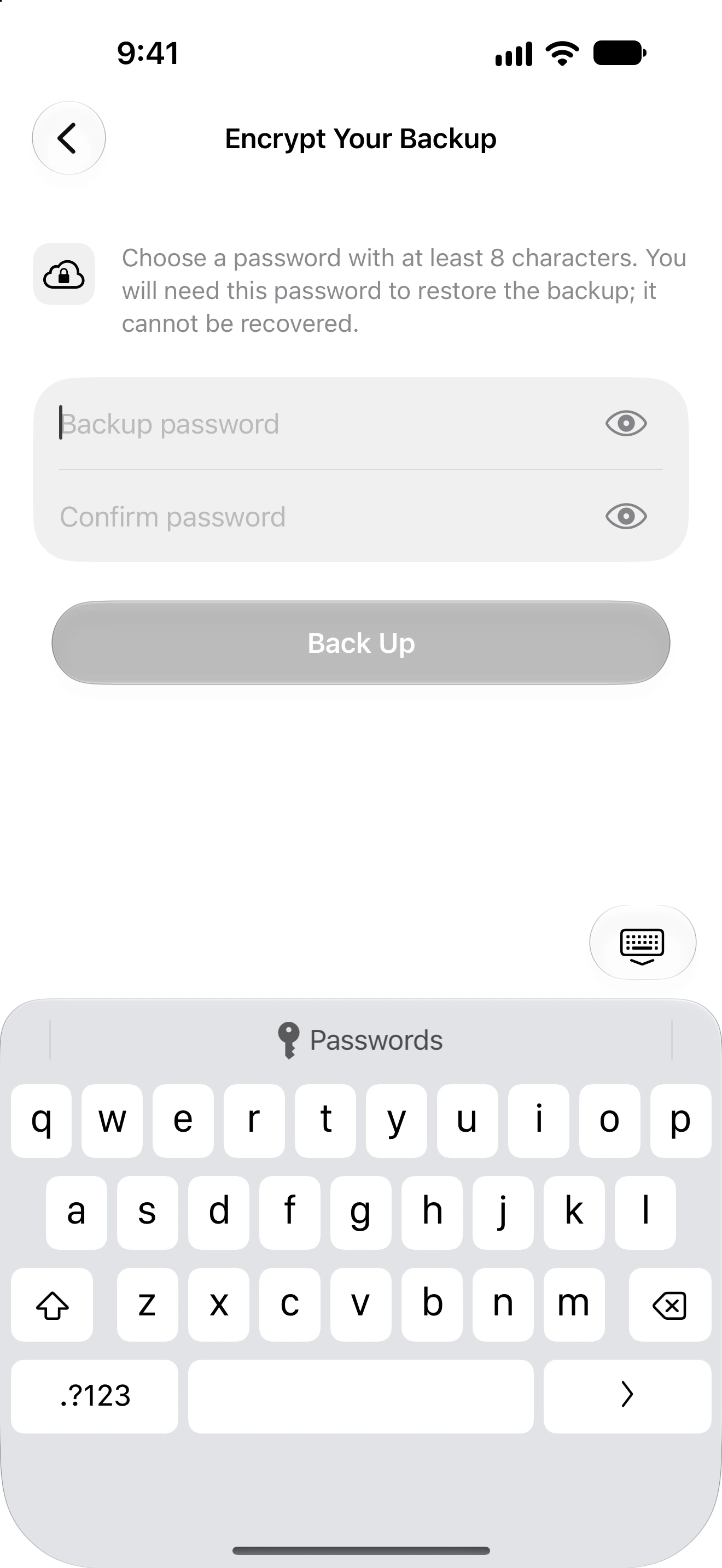
Encrypted on your device
Oath encrypts supported wallet material before writing the backup file to iCloud Drive.
A password you choose
The backup password protects the file. Your app passcode and Apple Account sign-in do not replace it.
A status for each wallet
Check that each upload completed. Preparing, queued and uploading states are still in progress.
Supported scope
Know what your backup covers.
Backup availability depends on the wallet type, app version and iCloud Drive access. This page describes Oath 5.0.2 (104).
Eligible active wallets
The backup flow exports supported wallet material and creates a separate encrypted file for each eligible wallet. Restore all-wallet backups one file at a time.
Electrum and aezeed
These recovery formats are excluded from iCloud backup in this release. Retain their original recovery material and any required password or seed extension.
Recently Deleted wallets
The all-wallet backup flow uses active wallets and excludes Recently Deleted wallets. A successful backup of one wallet does not establish that another was saved.
Prepare iCloud Drive
Use the Apple Account that will hold the backup, enable iCloud Drive and check available storage. Open Settings → Backup in Oath.
Choose the backup password
Start Back Up All Wallets and choose a strong password of at least eight characters. Keep it somewhere you can reach without this phone.
Check every upload
Keep Oath open while it prepares the files. Review each wallet’s status and resolve failed or unavailable uploads before relying on the backup.
The next step
Restore with the file and its password.
On a supported device, choose Restore from iCloud, select the intended backup and enter the password used for that file. After restoration, compare the public addresses with your original wallet. Oath cannot reset the password of an encrypted backup.
Read the restore guide →A few useful answers
Before you begin.
How does Oath encrypt the backup?
The reviewed release uses AES-256-GCM. A password-derived key uses PBKDF2-HMAC-SHA256 with 600,000 rounds and a fresh salt. A strong, recoverable password remains essential.
Is this the same as an iPhone device backup?
No. This feature creates Oath encrypted wallet files in iCloud Drive. Do not assume an ordinary device backup or Apple Account sign-in replaces an Oath backup file and its password.
What if I forget the backup password?
Oath cannot reset it or decrypt the old file with a new password. If the wallet is still accessible, create a new backup with a password you can retain. Keep independent recovery material, including any required passphrase.
Does “uploading” mean my wallet is backed up?
No. Wait for completion for the relevant wallet. Account, storage or network problems can leave an upload pending or failed.